
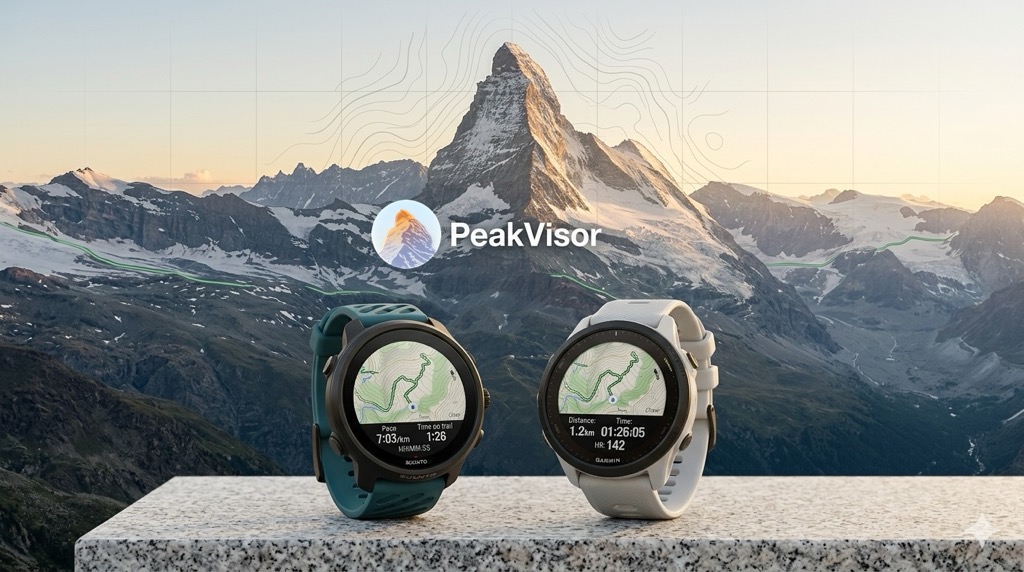
Build on the big screen. Navigate from your wrist.
PeakVisor now lets you send public routes directly to Garmin and Suunto from the same Share dialog you already use for links and QR codes.
That means the route does not stop at planning. You can build it on the map, save it, share it, and send it to the watch you actually use outside.
The core workflow is simple: connect your watch platform, open a public route, tap Share, and send it to Garmin Courses or Suunto Routes.
Plan on the Map, Send to Your Watch
PeakVisor already gives you the key parts of route planning in one place: build a route on the map, import a GPX file, inspect the elevation profile, review time estimates, and save the result to your profile.
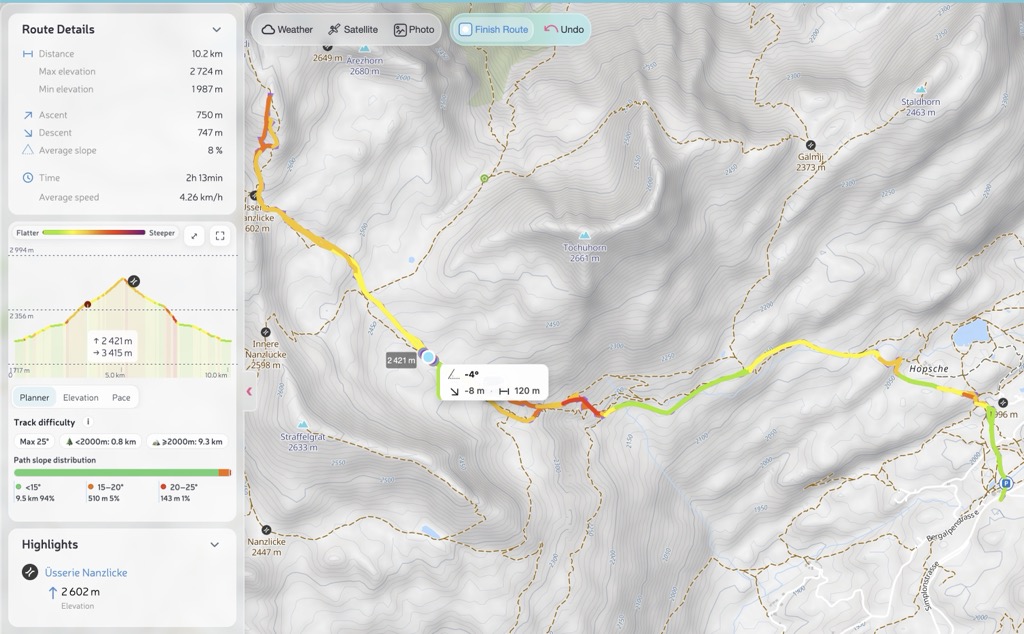
Now there is a faster way to finish the job. Once the route is ready, you can share it with other people or send it straight to your watch for real navigation in the field.
Connect Garmin and Suunto
Start in Profile → Settings → Devices.
There you can connect:
- Garmin
- Suunto
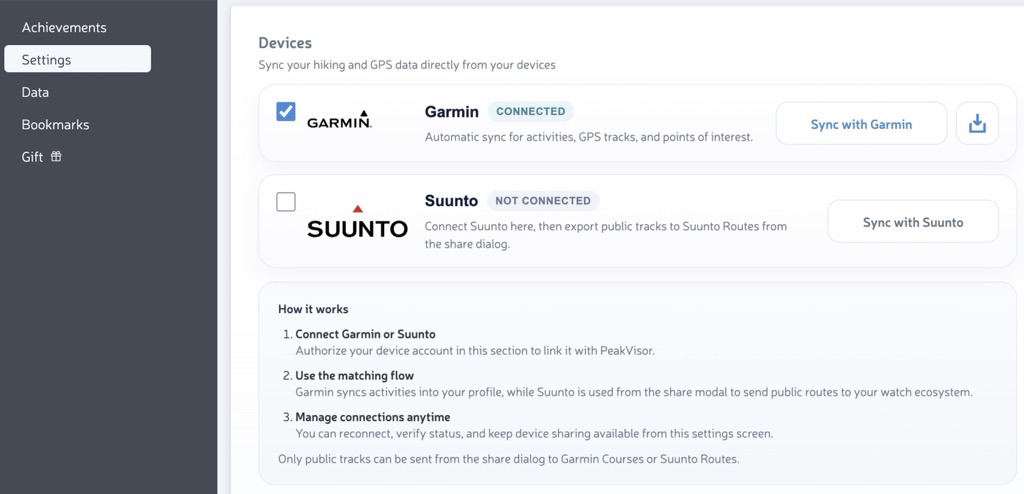
Once connected, PeakVisor can export routes directly from the share flow. Garmin users also continue to get activity sync into PeakVisor.
Share Public Routes from the Right Places
The Share action is now available on the route pages people already use, so exporting a route no longer depends on a single hidden entry point.
You can open the sharing dialog from:
- public trail pages;
- guide trail pages;
- marathon route cards;
- the Profile Trails page for signed-in users.
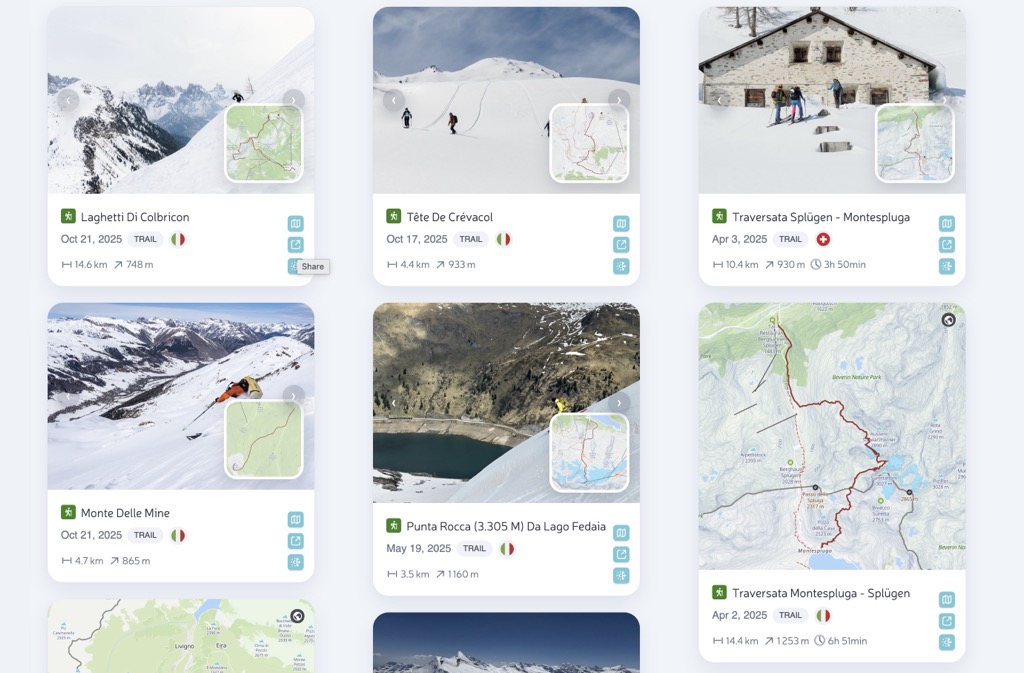
The dialog now supports:
- Copy Link
- QR code
- Export to Garmin
- Export to Suunto
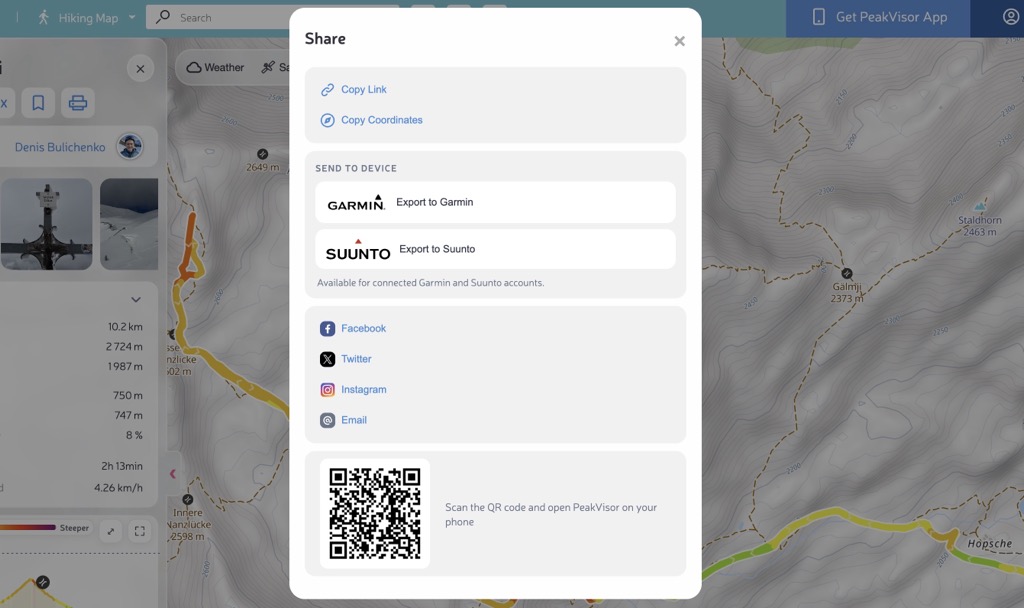
Important: only public routes can be exported to Garmin and Suunto. That keeps route links, web pages, and watch export working consistently across the whole workflow.
Where the Route Appears
After you connect Garmin or Suunto, open any public route, tap Share, and send it to your watch platform.
- Garmin: the route is uploaded to Garmin Courses
- Suunto: the route is uploaded to Suunto Routes
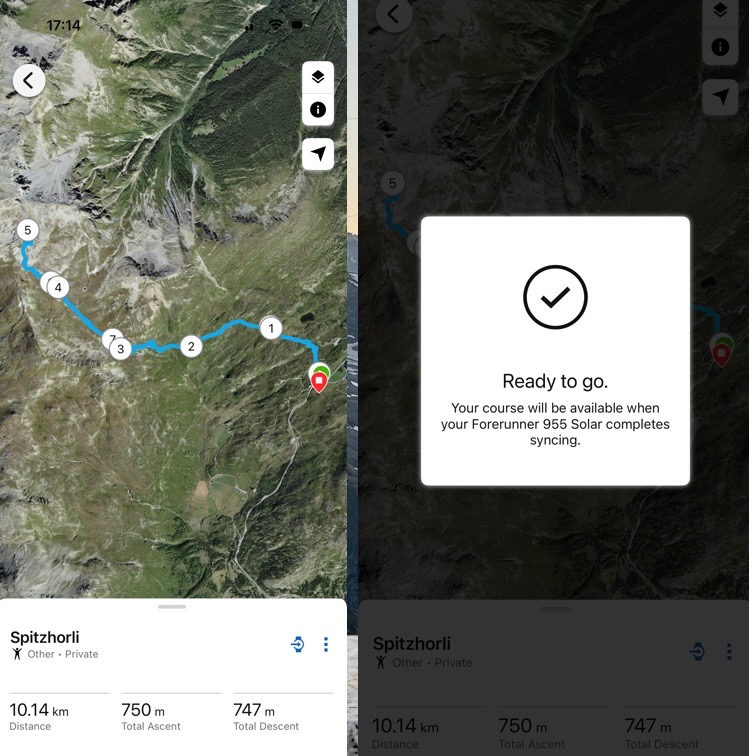
These are navigation routes, not completed workouts. If you are checking the wrong section, it can look as if nothing happened.
Here is the practical rule:
- Garmin — check Courses
- Suunto — check Routes
For Garmin Connect Web, look in Training & Planning -> Courses. In the Garmin Connect app, look for the Training / Courses section, depending on the app version.
So the full route-to-watch flow is now straightforward:
- build or import a route in PeakVisor;
- review the map, profile, and route stats;
- save the route and make it public;
- open Share;
- send it to Garmin or Suunto.
Why This Update Is Useful
This update closes the gap between route planning and real-world navigation. Instead of stopping at the map, PeakVisor now helps you get the route onto the device you actually use outside.
- plan on the map;
- inspect the route in context;
- share it cleanly;
- send it to your watch.
If you already use the new planner, this is the natural next step: build the line, publish the route, and put it on your wrist.
Try it on your next route and tell us what should come next at peakvisor@routes.tips.